Configurer l'agent WinAppack par GPO
All policies configure the following registry keys : HKLM\SOFTWARE\Policies\WinAppack\...
The WinAppack Agent relies on the values of these registry keys (see Verify the configuration at the end of this page).
How to create a new Policy ?
You can create a new Group Policy as shown below :
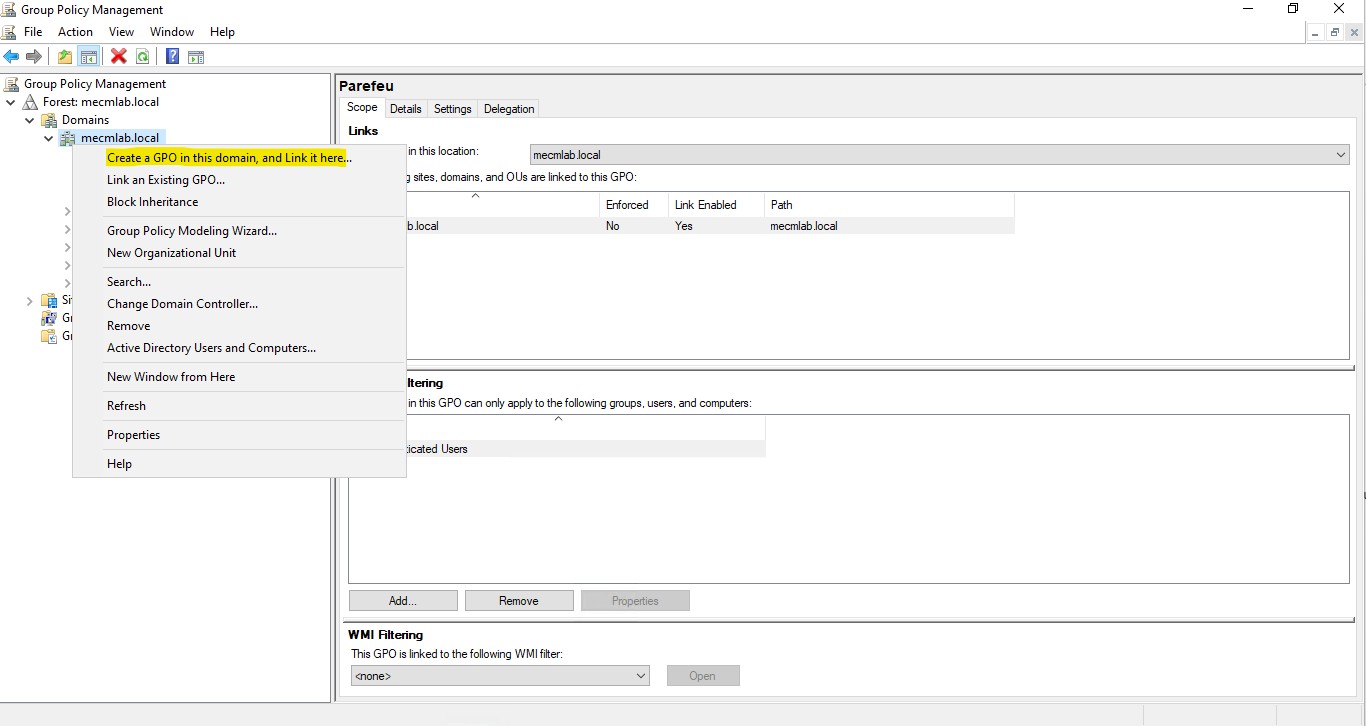
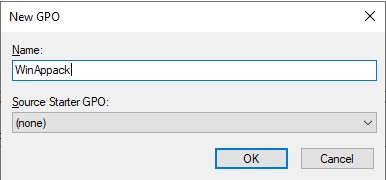
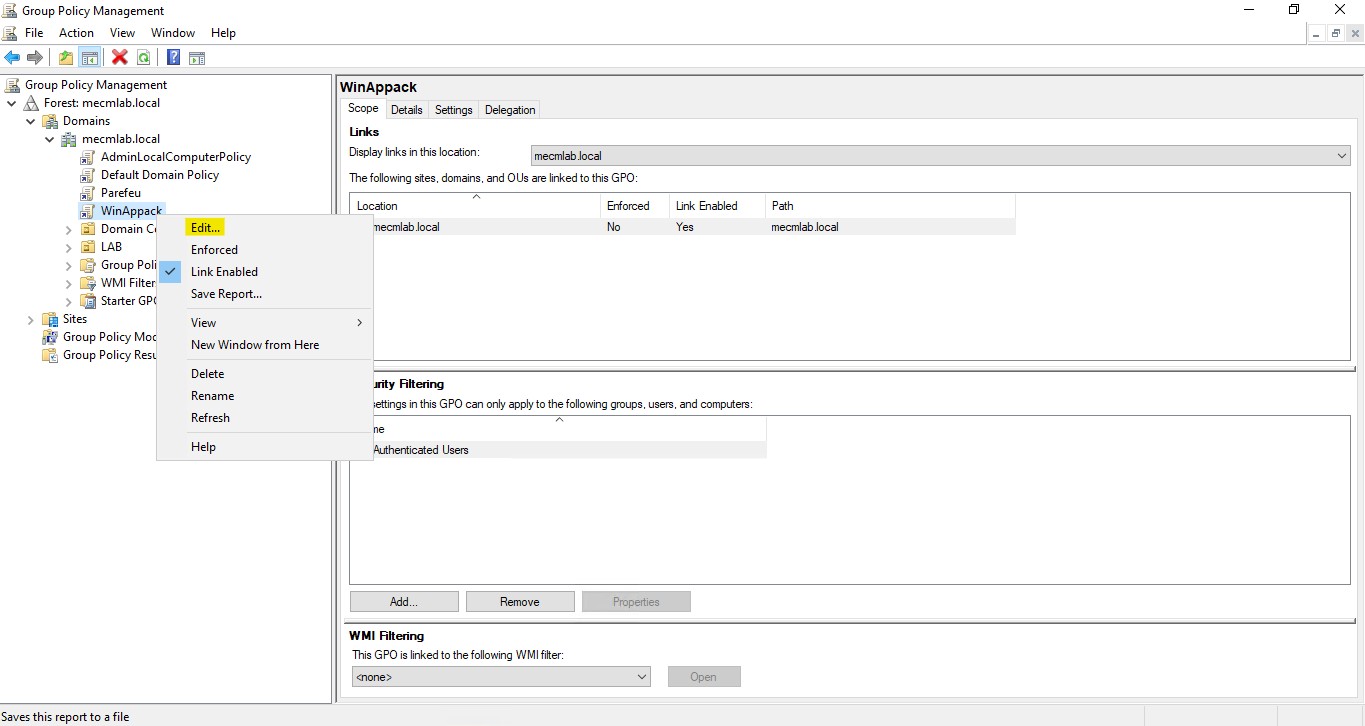
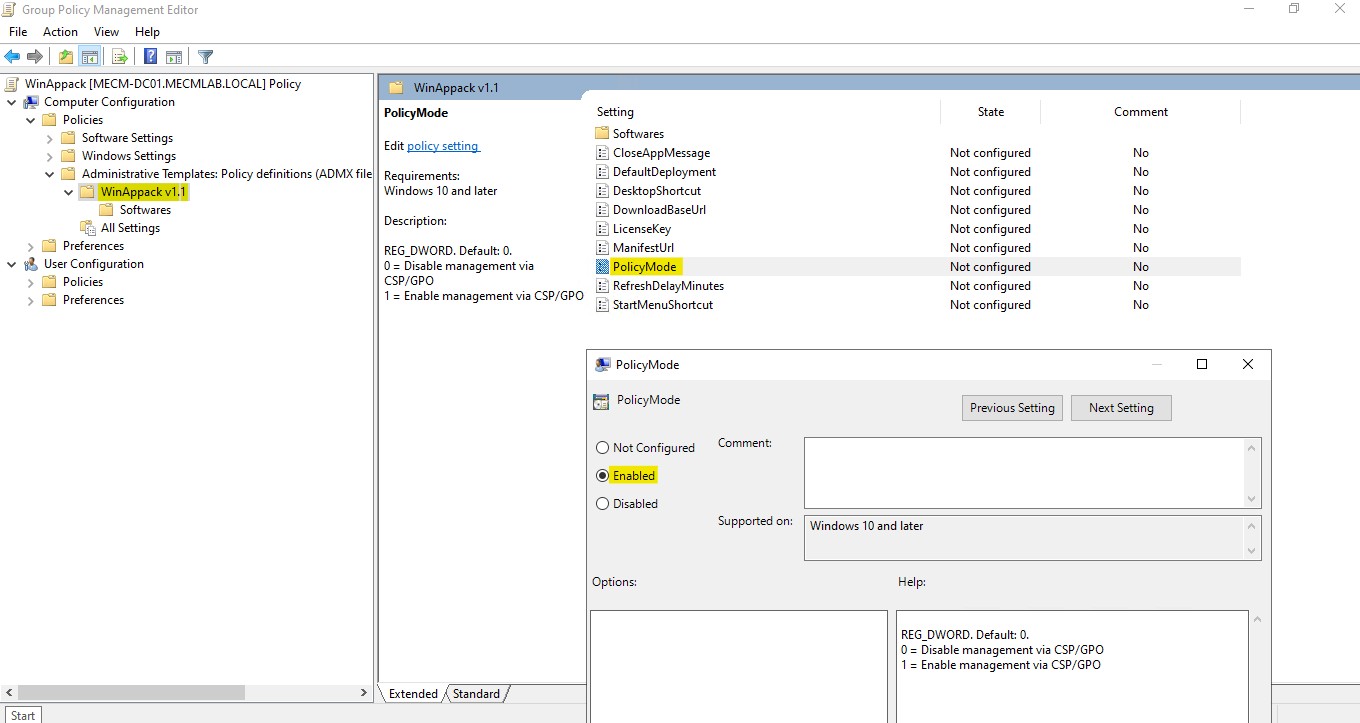
PolicyMode
This policy enables or disables management of the WinAppack Agent via GPO. When disabled, all other policies have no effect.
Note : This policy requires a valid license key to take effect (see the LicenseKey policy).
Accepted Values :
To enable management of the WinAppack Agent :
enabledTo disable management of the WinAppack Agent :
disabledDefault Value :
disabledLicenseKey
Use this policy to activate the WinAppack Agent. Without a license key, all other policies have no effect.
Accepted Values : Replace "ABCDEFG123" by your licenseKey
ABCDEFG123Default Value :
disabledDesktopShortcut
Manage the "WinAppack.lnk" shortcut on the public desktop :
Note : This policy requires a valid license key to take effect (see the LicenseKey policy).
Accepted Values :
enableddisabledDefault Value :
enabledStartMenuShortcut
Manage the "WinAppack.lnk" shortcut in the Start Menu :
Note : This policy requires a valid license key to take effect (see the LicenseKey policy).
Accepted Values :
enableddisabledDefault Value :
enabledManifestUrl
URL of the JSON manifest containing the list of available software :
Note : This policy requires a valid license key to take effect (see the LicenseKey policy).
Accepted Values :
https://otherserver.com/v1/WinAppack-SoftwareList.jsonTo explicitly use the default URL, set the value to :
disabledDefault Value : https://api.winappack.fr/v1/WinAppack-SoftwareList.json
disabledDownloadBaseUrl
URL of the site hosting the software logos (.svg / .png) and the PowerShell installation scripts (.ps1) :
Note : This policy requires a valid license key to take effect (see the LicenseKey policy).
Accepted Values :
https://otherserver.comTo explicitly use the default hosting site, set the value to :
disabledDefault Value : https://api.winappack.fr
disabledRefreshDelayMinutes
Time interval between update checks :
Note : This policy requires a valid license key to take effect (see the LicenseKey policy).
Accepted Values :
- Minimum: 10 (10 minutes)
- Maximum: 1440 (24 hours)
60To explicitly use the default value, set the value to : 60
disabledDefault Value : 60
disabledCloseAppMessage
Enable or Disable the message asking the user to close the application before installation :
Note : This policy requires a valid license key to take effect (see the LicenseKey policy).
Accepted Values :
enableddisabledDefault Value :
disabledDefaultDeployment
Manage the default behavior in the user interface for software that does not have a deployment policy :
Note : This policy requires a valid license key to take effect (see the LicenseKey policy).
Accepted Values :
Available : For software that does not have any Deployment policy in the Software configuration, the software will appear as available in the user interface
AvailableNotAvailable : For software that does not have any Deployment policy in the Software configuration, the software will not appear in the user interface.
NotAvailableDefault Value : Available
AvailableSoftware Configuration :
To configure the list of authorized software, use the Slug of each software : Software List
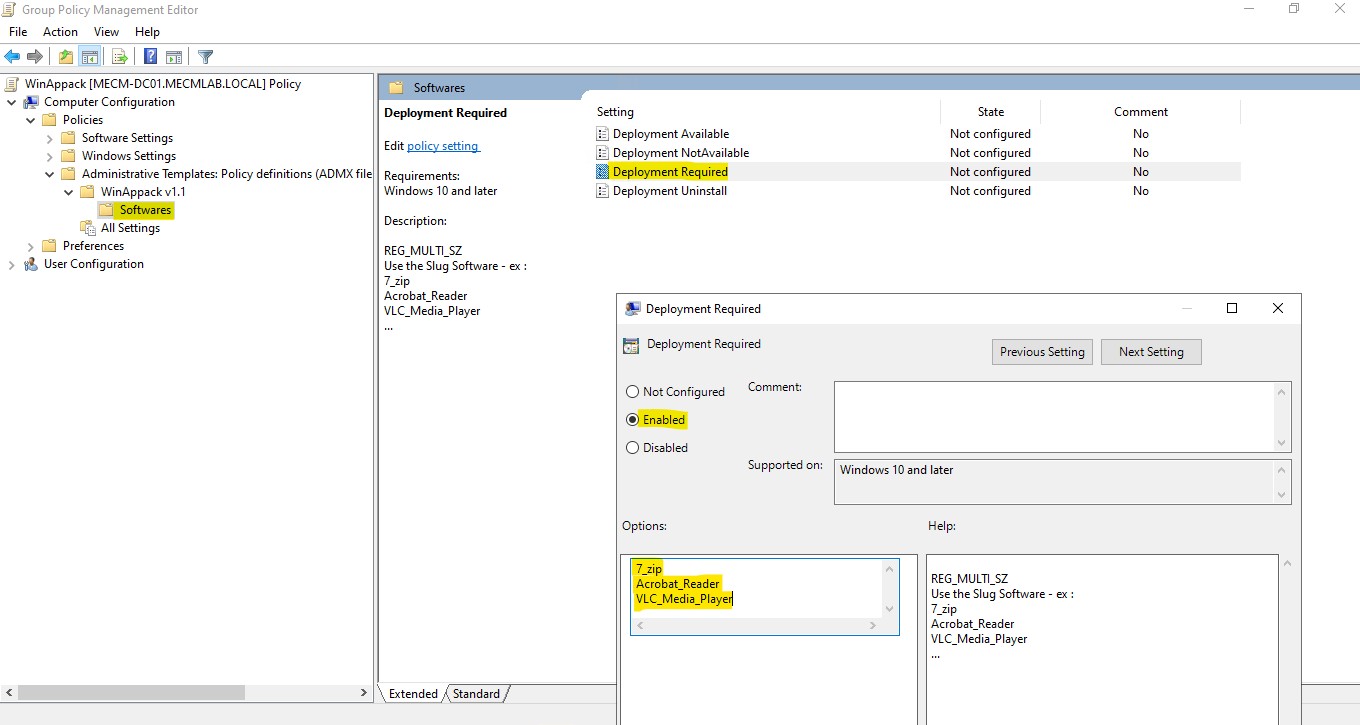
Deployment Available
Each software present in this policy will be available for installation/uninstallation in the user interface.
Note : This policy requires a valid license key to take effect (see the LicenseKey policy).
Accepted Values : Replace {Slug} by one or multiple Software Slug.
{Slug1}
{Slug2}
{Slug3}
Example :
Audacity
7_zip
Notepad_plus_plus
Default value for each Software : See DefaultDeployment policy value.
Deployment Required
Each software present in this policy will be automatically installed. Users cannot manage the installation or uninstallation of this softwares in the user interface.
Note : This policy requires a valid license key to take effect (see the LicenseKey policy).
Accepted Values : Replace {Slug} by one or multiple Software Slug.
{Slug1}
{Slug2}
{Slug3}
Example :
Audacity
7_zip
Notepad_plus_plus
Default value for each Software : See DefaultDeployment policy value.
Deployment NotAvailable
Each software present in this policy will not be available for installation/uninstallation in the user interface. Users cannot manage the installation or uninstallation of this softwares in the user interface.
Note : This policy requires a valid license key to take effect (see the LicenseKey policy).
Accepted Values : Replace {Slug} by one or multiple Software Slug.
{Slug1}
{Slug2}
{Slug3}
Example :
Audacity
7_zip
Notepad_plus_plus
Default value for each Software : See DefaultDeployment policy value.
Deployment Uninstall
Each software present in this policy will be automatically uninstalled. Users cannot manage the installation or uninstallation of this softwares in the user interface.
Note : This policy requires a valid license key to take effect (see the LicenseKey policy).
Accepted Values : Replace {Slug} by one or multiple Software Slug.
{Slug1}
{Slug2}
{Slug3}
Example :
Audacity
7_zip
Notepad_plus_plus
Default value for each Software : See DefaultDeployment policy value.
Remark : If a software is present in different Deployment Policies, the Agent applies policies in the following priority order : Uninstall, NotAvailable, Required, Available
Verify the configuration
Workstations refresh their Group Policies at startup, then every 90 minutes (with a random offset of up to 30 minutes). To apply the configuration immediately, open a command prompt as administrator on a target workstation and run:
gpupdate /force1. Check that the GPO is applied to the computer
In the same command prompt, run:
gpresult /r /scope computerThe name of your GPO (for example "WinAppack") must appear in the Applied Group Policy Objects list. If it is missing, or if it appears under The following GPOs were not applied because they were filtered out, check that:
- the computer account is located in the OU (or the domain) linked to the GPO,
- the security filtering of the GPO includes the computer (by default: Authenticated Users),
- the link of the GPO is enabled.
For a detailed report, run the following command and open the generated file. Under Computer Details > Settings, the report lists each WinAppack policy with its value and the GPO that applies it:
gpresult /h C:\Windows\Temp\gpresult.html2. Check the registry keys
Open the Registry Editor (regedit) and check the following keys:
- HKLM\SOFTWARE\Policies\WinAppack: general policies (PolicyMode, LicenseKey, DesktopShortcut, etc.).
- HKLM\SOFTWARE\Policies\WinAppack\Softwares: software lists of the Deployment policies.
Each configured policy appears as a registry value. A policy that is not configured does not appear: the Agent then uses its default value.

